QR Code Business Cards A Complete Guide to Adding QR Codes to Professional Cards
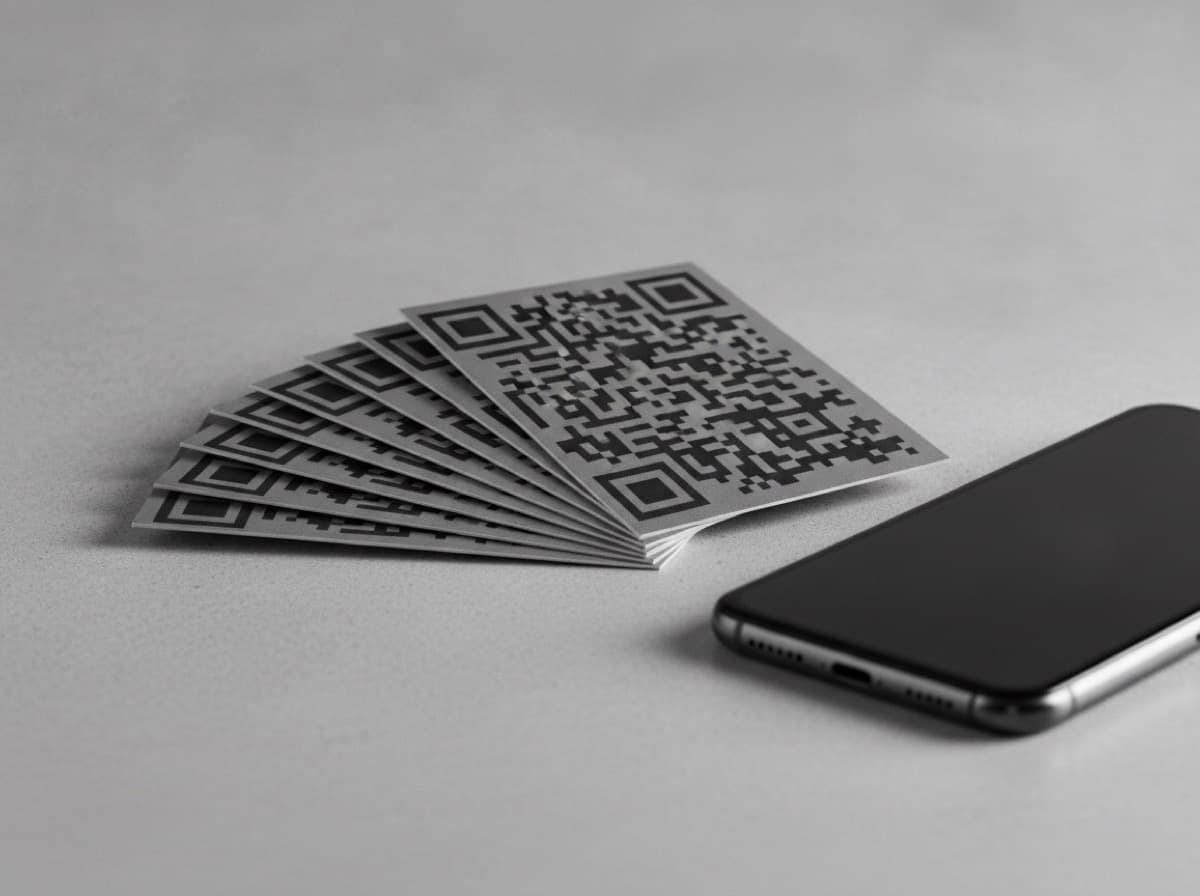
QR codes — Quick Response codes — are two-dimensional barcodes that smartphones can scan with their cameras, instantly launching a website, app, or digital action. When placed on a business card, a QR code converts a static piece of print into an active digital connection point, giving the card recipient an immediate pathway to learn more about you, book an appointment, view a portfolio, or add your contact information — without typing a single character.
Why QR Codes Work on Business Cards
The friction problem: Business cards contain contact information, but acting on that information still requires effort — typing a URL, searching for someone on LinkedIn, copying an email address. A QR code eliminates that friction. One camera scan opens your booking page, your portfolio, your LinkedIn profile, or your direct scheduling link.
The space problem: A business card has limited space. A QR code lets you link to unlimited content — a full service menu, a portfolio gallery, a full bio, client testimonials — without printing any of it on the card.
The change problem: Once a business card is printed, the information on it is fixed. A QR code pointing to a website means your digital information can change (new phone number, new services, updated portfolio) without reprinting cards.
Adoption rate: Smartphone camera-based QR code scanning without a separate app is now supported natively on all current iOS and Android devices. The friction to scanning a QR code is lower than it's ever been — camera app, point, tap.
What to Link Your QR Code To
Your Website or Portfolio
The most common and usually most appropriate destination:
- Your main website homepage
- A dedicated "card landing page" — a page designed specifically for people who have just met you, with a focused message, clear CTA, and contact information
- Your portfolio or project gallery (for visual professionals)
- Your profile on a professional services platform (Houzz, Thumbtack, Bark, etc.)
Best for: Most professionals; universal applicability; the QR code gives the card an upgrade from static contact info to your full digital presence
LinkedIn Profile
For professionals whose networking is primarily professional/B2B:
- LinkedIn generates a built-in QR code in the LinkedIn app that links directly to your profile
- You can also use a third-party QR generator to create a code for your LinkedIn URL
- Enables instant connection request from the event or meeting
Best for: B2B professionals, consultants, job seekers, anyone whose LinkedIn profile is their primary professional profile
Online Booking or Scheduling
A direct link to your scheduling page (Calendly, Acuity, Booksy, Jane App, etc.):
- Perhaps the highest-value QR code destination for service professionals — from a card scan to a booked appointment with no further friction
- Labeled clearly: "Book an Appointment" or "Schedule a Consultation"
Best for: Healthcare providers, therapists, personal trainers, coaches, beauty and wellness professionals, consultants, attorneys with free consultation offers
Video or Demo Reel
A link to a YouTube video, Vimeo reel, or other video content:
- Photographers and videographers: portfolio showreel
- Speakers and coaches: speaking demo reel
- Restaurants and chefs: behind-the-scenes kitchen video
- Architects: architectural walkthrough video
- Real estate agents: property tour video or agent intro video
Best for: Visual and creative professionals; speakers and entertainers; anyone whose work is better shown than described
Digital Business Card or vCard
A QR code that, when scanned, prompts the phone to save your contact information directly to the contacts app:
- vCard format: Universal contact card standard; scan triggers "Add to Contacts" dialog
- Digital business card platforms: Services like HiHello, Blinq, Popl, and others generate a QR code that displays a digital card with "Add to Contacts" functionality
- This is the most direct path from physical card scan to phone contacts
Best for: Professionals who want to ensure contact information is saved, not just that a webpage was visited; sales representatives, real estate agents, and professionals at high-volume networking events
Google Business Profile
A QR code linking directly to your Google Business listing:
- Recipients can immediately see your reviews, photos, hours, and contact information
- Can pre-populate a Google review submission (link format adds the review intent)
- "See our Google Reviews" or "Leave a Review" labeled QR codes are effective for service businesses
Best for: Local service businesses, restaurants, retail, contractors — anyone for whom Google reviews are important to reputation
Social Media Profile
Single most-relevant social platform link:
- Instagram portfolio (visual creatives, food and beverage, retail, beauty)
- Twitter/X (media professionals, authors, speakers)
- TikTok (content creators, entertainment, food)
- YouTube channel (educators, video creators)
Important: Only link to a social platform if that platform is consistently maintained and represents your professional work well. A LinkedIn profile with no activity or an Instagram with personal photos rather than professional work is worse than no QR code at all.
QR Code Design Best Practices
Size Requirements
QR codes on business cards must be large enough for camera apps to reliably scan:
- Minimum size: 0.8 inches × 0.8 inches (about 20mm × 20mm) — smaller than this risks scan failure on some devices
- Recommended size: 1 inch × 1 inch (25mm × 25mm) or larger — reliable scan performance
- Practical placement: On a 3.5 × 2 inch card, a 1-inch QR code takes up approximately 14% of the card area — manageable on the back panel but crowded on a front panel with contact information
Color and Contrast
QR codes require high contrast between the dark modules (squares) and the light background to scan reliably:
- Standard: Black QR code on white background — most reliable
- Dark code on light background: Works reliably; navy or dark gray code on white or cream background
- Inverted (light code on dark background): Can work but is less reliable on some QR readers; if using white QR code on dark background, test thoroughly on multiple devices
- Colored QR codes: Using a brand color for the QR code modules is possible but risks reduced scan reliability if contrast is insufficient; always test
- Minimum contrast ratio: At least 4:1 contrast between the QR code and background is recommended
QR Code Logo Embedding
Modern QR codes can have a small logo or icon embedded in the center:
- Possible because QR codes have built-in error correction (up to 30% of the data can be obscured and still decode correctly)
- Logo should occupy no more than 15–20% of the QR code area
- Test scan reliability with the logo embedded before printing; logos that are too large, too complex, or too similar in color to the modules can cause scan failure
Frame and Label
Always label the QR code — unlabeled QR codes get scanned less because recipients don't know what they'll open:
- "Scan to visit my website"
- "Book an appointment"
- "View my portfolio"
- "Connect on LinkedIn"
- "Save my contact info"
- "See our reviews"
A simple frame or box around the QR code with a label below creates a clear visual affordance: this is something to scan.
Static vs. Dynamic QR Codes
Static QR Code
The destination URL is encoded directly into the QR code pattern. Once printed, the QR code cannot be changed — to change the destination, you must create a new QR code and reprint cards.
Pros: Free; no ongoing service required; no link in the middle between your code and destination
Cons: Immutable after printing; cannot track scan analytics; cannot update destination without reprinting
Best for: Professionals who are certain their destination URL is stable and don't need analytics
Dynamic QR Code
Instead of the final destination URL, the QR code encodes a short redirect URL managed by a QR code service. The redirect service forwards the scan to whatever destination URL you've configured — which you can change at any time without reprinting cards.
Pros: Changeable destination without reprinting; scan analytics (how many times, from which locations); can correct broken links without reprinting
Cons: Requires ongoing subscription to a QR code service (QR Code Generator Pro, Beaconstac, Bitly, etc.); if the service goes down or you cancel, codes stop working
Cost: Most QR code services charge $5–$20/month for dynamic QR codes; some offer free tiers with limitations
Best for: Professionals who want analytics, are likely to change their digital destination, or want the flexibility to update without reprinting
Placement on the Card
Back Panel Placement
The most common and usually most appropriate placement:
- QR code gets a dedicated area on the card back, usually in one corner
- Label the QR code clearly
- Can be paired with a short explanation of what scanning does
Front Panel Placement
Possible but requires careful design:
- QR code on front competes with contact information and logo for visual hierarchy
- Works best as a smaller accent element (not dominant)
- Makes sense if the QR code is the primary CTA of the card (digital business card use case)
Multiple QR Codes
It's possible but generally not recommended:
- Two QR codes on one card creates decision paralysis; recipients may not scan either
- If you must have two, make them very clearly labeled and distinct in purpose
- Prefer one QR code that takes the recipient to a landing page with multiple options
Creating Your QR Code
Free generators: QR Code Generator (qr-code-generator.com), QRCode Monkey, Google's QR code generator — all produce static QR codes at no cost
Dynamic QR code services: Beaconstac, QR Code Generator Pro, Bitly (with QR), Flowcode — paid services for dynamic codes with analytics
LinkedIn: LinkedIn's native QR code is the most reliable way to generate a LinkedIn-linked QR code
File format for print: Generate your QR code as an SVG or PDF (vector format) for best print quality; avoid small JPGs which lose quality when printed
Error correction level: Use High (H-level, 30% error correction) for QR codes with an embedded logo; use Quartile (Q) or Medium (M) for standard printed QR codes without a logo
Testing Before Printing
Always test your QR code before printing a full run of cards:
- Generate the QR code and place it in your card design
- Export a print-quality PDF or proof at actual card size
- Test scan with at least 3 different devices (iOS camera app, Android camera app, and a QR reader app)
- Test the scan at typical distances: arm's length, 1 foot, 2 feet
- If using a dynamic code, verify the redirect works correctly
- After printing physical samples, test the printed QR code again before ordering the full quantity
Get 10% off your first order
Join our list for practical printing guides, new finish ideas, and a welcome coupon for your first order.
No spam. Unsubscribe anytime.
Ready to start your print order?
Browse Printing ProductsNot sure which option fits? Ask Pro Card Crafters