Business Card File Formats Guide: PDF, AI, PSD, and What Printers Actually Need
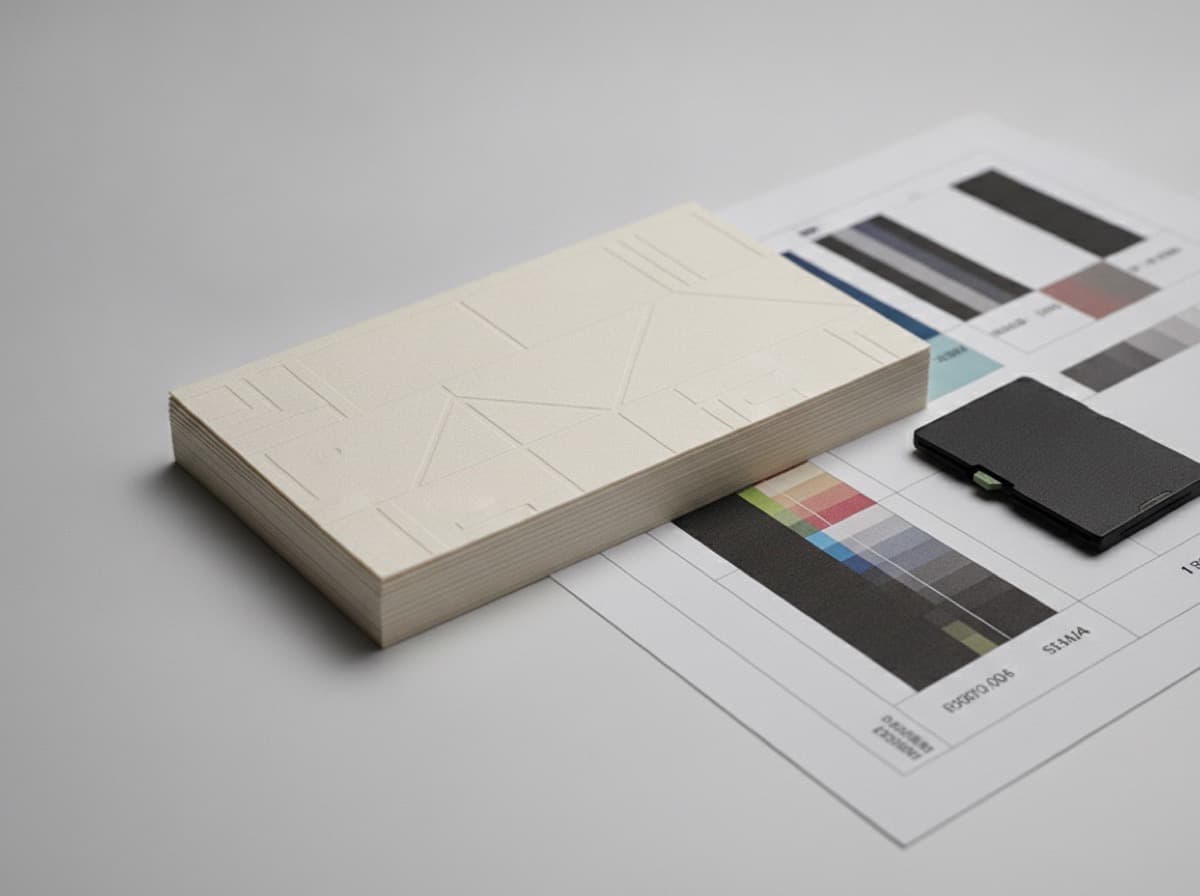
Submitting the right file format is one of the most practically important parts of the business card printing process. A beautifully designed card can print poorly or cause delays if the file isn't correctly prepared. Here's what each format means and what printers actually need.
The Universal Answer: Print-Ready PDF
For the vast majority of business card printing situations — online print shops, commercial printers, local print vendors — a print-ready PDF is the correct format to submit.
PDF (Portable Document Format) preserves your design exactly as you built it:
- Fonts are embedded (no substitution at the printer)
- Colors are defined (CMYK values are preserved)
- Bleed and trim information is encoded
- Images are embedded at their full resolution
- The file looks identical on any computer
When you submit a print-ready PDF, the printer can process your file without opening your original design software.
What "Print-Ready" Means
A PDF can be a screen-quality 72 DPI file or a print-quality 300 DPI file. "Print-ready" is not a PDF file setting — it's a combination of correct settings:
A print-ready PDF for business cards includes:
- Resolution: All embedded images at 300 DPI at final print size (minimum)
- Color mode: CMYK (not RGB — print presses use CMYK inks)
- Bleed: 0.125 inch bleed on all sides (document size 3.75 × 2.25 inches)
- Fonts: All fonts embedded or converted to outlines
- PDF version: PDF/X-1a or PDF/X-4 (common print standards)
- No layers: Flattened layers, or layers that the printer's software can interpret
PDF/X Standards
- PDF/X-1a: The most common standard for commercial printing. CMYK only, fonts embedded, no RGB.
- PDF/X-4: Supports transparency layers; more modern. Many printers accept both.
- PDF/X-3: Allows color management (useful for color-critical work).
When exporting from Illustrator or InDesign, look for the PDF/X-1a or PDF/X-4 preset in the PDF export dialog.
File Formats by Design Software
Adobe Illustrator (.ai)
The native Illustrator format preserves all vector information, layers, and editable type. Some printers accept .ai files, but most prefer PDF.
To make a print-ready PDF from Illustrator:
- File > Save As > Adobe PDF
- Choose preset: "[Press Quality]" or PDF/X-1a
- Under Marks and Bleeds: "Use Document Bleed Settings"
- Under Output: Color Conversion > Convert to Destination (CMYK)
- Save
If your printer requests the native .ai file: Make sure fonts are outlined (Type > Create Outlines before saving) and the file is linked/embedded with images.
Adobe InDesign (.indd)
InDesign is common for multi-page documents but also used for business card design. Export process:
- File > Export > Adobe PDF (Print)
- Preset: PDF/X-1a or PDF/X-4
- Under Marks and Bleeds: Use document bleed settings, include slug
- Under Output: Color conversion to CMYK
One critical InDesign step: Package your fonts before sharing the source file. Printers who receive an .indd file also need the fonts and linked images.
Adobe Photoshop (.psd)
Photoshop is raster-based — it works with pixels rather than vectors. Business cards designed in Photoshop:
- Must be 300 DPI at final print size
- Should be in CMYK mode
- Export to PDF as a flattened CMYK document
Photoshop limitation: Text in Photoshop is rasterized at 300 DPI (acceptable) but loses the sharp vector quality of Illustrator/InDesign text. For text-heavy cards, Illustrator or InDesign is preferred.
Photoshop PDF export:
- Flatten all layers (Layer > Flatten Image)
- File > Save As > Photoshop PDF
- Compatibility: PDF/X-1a
- Options: Embed Color Profile (CMYK), Include Vector Data
Canva
Canva is not professional design software — it's a consumer tool. However, many businesses use Canva for business cards.
Canva PDF export:
- Download > PDF Print
- Enable "Crop marks and bleed" option
- Canva exports at 300 DPI
- Colors are RGB-based in Canva, converted to CMYK by Canva's print processor
Canva limitation: Canva doesn't give you precise control over CMYK color values. Colors may shift from what you see on screen. For brand-accurate color, use professional design software.
Other Design Tools
- Affinity Publisher/Designer: Export PDF/X-1a similarly to InDesign/Illustrator. Full professional capability.
- CorelDRAW: Common in some print shops; exports print-ready PDF similarly.
- Microsoft Word / Publisher: Generally not print-quality. If you must use Word, export as PDF but be aware of resolution limitations and font handling.
- Figma: Can export PDF but is not designed for print. CMYK conversion may be imprecise.
What NOT to Submit
JPEG or PNG
JPEG and PNG are screen formats. They lack:
- Bleed information
- Vector scalability (fonts may be blurry at card size)
- Proper color space encoding
Some printers accept JPEG, but only at 300+ DPI and at the exact final print size. JPEG is not recommended for professional results.
RGB PDF
A PDF in RGB color mode — which is the default for screen-intended documents — will be converted to CMYK by the printer. This conversion can cause color shifts, especially in rich blues, bright oranges, and deep reds. Always convert to CMYK before submitting.
Low-Resolution Files
Any file under 300 DPI at final print size will produce pixelated or blurry output. Common mistake: submitting a file that looks sharp on screen (72 DPI) but prints at 1/4 the resolution of a card.
Checking Your File Before Sending
In Adobe Acrobat:
- Tools > Print Production > Output Preview: check color mode (should show CMYK)
- Tools > Print Production > Preflight: run a PDF/X-1a compliance check
- File > Properties > Description: document dimensions should be 3.75 × 2.25 inches
Quick Color Check:
Open your PDF, zoom to 400% on an area with body text. If text is crisp and vector-smooth, fonts are embedded correctly. If text looks pixelated or jaggy, fonts may not be embedded.
Resolution Check in Photoshop:
Image > Image Size > make sure dimensions are correct AND resolution is 300 DPI.
Summary Table
| Format | Good For | Watch Out For | |---|---|---| | PDF/X-1a | All printers, professional results | Must set CMYK, bleed, embed fonts | | .ai (Illustrator) | Vector cards, some printers accept | Font embedding, image links | | .psd (Photoshop) | Photo-based designs | 300 DPI required, RGB > CMYK | | Canva PDF | Simple designs, accessible | RGB color shift, limited control | | JPEG/PNG | Not recommended | Low resolution, no bleed |
Checklist Before Submitting
- [ ] File is CMYK, not RGB
- [ ] Document size is 3.75 × 2.25 inches (includes 0.125" bleed)
- [ ] All images are 300 DPI at final size
- [ ] All fonts are embedded or outlined
- [ ] PDF version is PDF/X-1a or PDF/X-4
- [ ] Both front and back files included (if double-sided)
- [ ] Color mode confirmed in Acrobat Output Preview
- [ ] File opened on a second computer to confirm it looks correct
Get 10% off your first order
Join our list for practical printing guides, new finish ideas, and a welcome coupon for your first order.
No spam. Unsubscribe anytime.
Ready to put these tips into print?
Order Business CardsNot sure which option fits? Ask Pro Card Crafters