CMYK vs. RGB: Everything You Need to Know About Color Conversion for Print
You designed a vivid neon green on screen, but the printed piece came back looking like dull olive. This is one of the most common surprises for designers new to print — and the cause is always the same: the difference between color modes.

What Is the Difference Between RGB and CMYK?
RGB is an additive color model using light (Red, Green, Blue). Monitors, smartphones, and televisions all generate color this way. When all three channels are at full intensity, the result is white.
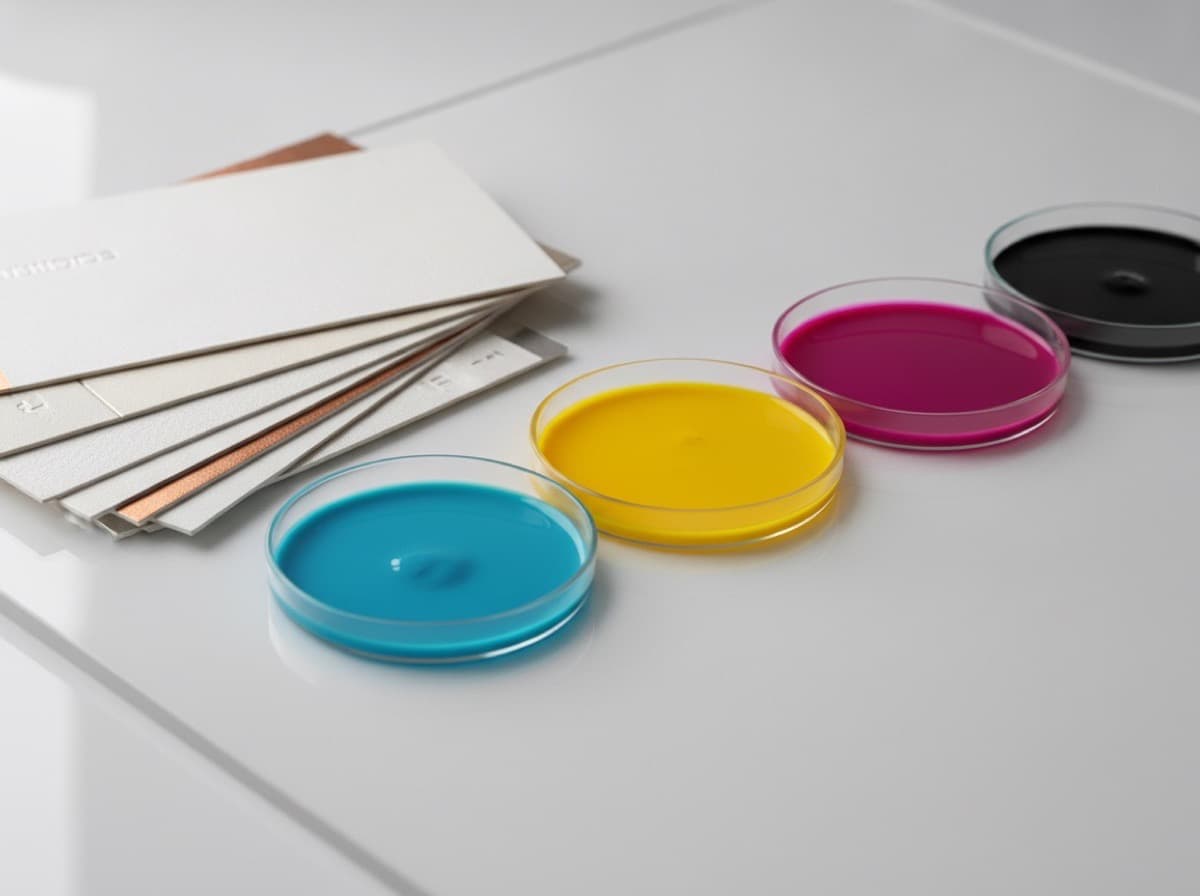
CMYK is a subtractive color model using ink (Cyan, Magenta, Yellow, Key/Black) applied to paper. Each ink layer absorbs certain wavelengths of light, so adding more ink makes the result darker. In theory, combining C, M, and Y should produce black, but in practice the result is a muddy brown — which is why a dedicated K (black) ink channel exists.
The Gamut Gap
The core issue is the size of each model's gamut — the full range of colors it can reproduce. RGB's gamut is significantly larger than CMYK's.
| | RGB | CMYK | |---|---|---| | Mixing method | Additive (light) | Subtractive (ink) | | Channels | R, G, B | C, M, Y, K | | Maximum mix | White | Paper white | | Color gamut | Wide | Narrower | | Primary use | Screens | Print |
Fluorescent and neon colors — vivid pinks, neon greens, bright oranges — along with deep saturated blues sit outside the CMYK gamut entirely. When an RGB file is converted, those colors get mapped to the nearest printable equivalent, which often looks noticeably muted.
When and How to Convert
The best practice is to design in CMYK mode from the start. That way, what you see on screen tracks closely with what comes off the press.
- Photoshop: Image > Mode > CMYK Color
- Illustrator: File > Document Color Mode > CMYK Color
- For US commercial printing, the US Web Coated (SWOP) v2 profile is a common and reliable starting point
What to Check After Converting
- Scan visually for any colors that shifted significantly from RGB to CMYK
- Manually bump saturation and hue on neon or pure-color areas that look flat after conversion
- Keep black body text as pure K100 (C0 M0 Y0 K100) — avoid four-color black in text
- For large, dark backgrounds where deep black matters, rich black (C40 M30 Y30 K100) is common
Pre-Flight Checklist
- [ ] Document color mode is set to CMYK
- [ ] No fluorescent colors that cannot reproduce in CMYK
- [ ] Body text black is K100 single channel
- [ ] Any colors that shifted after conversion have been manually corrected
- [ ] Final PDF export is configured to output CMYK
Frequently Asked Questions
Q. What happens if I submit an RGB file? A. The print shop's RIP software will auto-convert it to CMYK, but you have no control over the conversion algorithm. Unexpected color shifts are common. If color accuracy matters, convert yourself, review the result, and then submit.
Q. Is there any way to print a true fluorescent color? A. Four-color process printing cannot reproduce true neons. To hit a fluorescent or highly saturated color, you need a spot color — a specially mixed ink such as a Pantone fluorescent shade added as a separate ink channel. This increases the cost of the job.
Q. My photo went dark and flat after converting to CMYK. Is that normal? A. It is common. After conversion, a small Curves adjustment (lifting the midtones slightly) combined with a 5–10% saturation boost usually brings the image much closer to the original screen appearance.
Get 10% off your first order
Join our list for practical printing guides, new finish ideas, and a welcome coupon for your first order.
No spam. Unsubscribe anytime.
Ready to put these tips into print?
Order Business CardsNot sure which option fits? Ask Pro Card Crafters