CMYK vs. RGB: Why Your Business Card Colors Must Be Set Correctly Before Printing
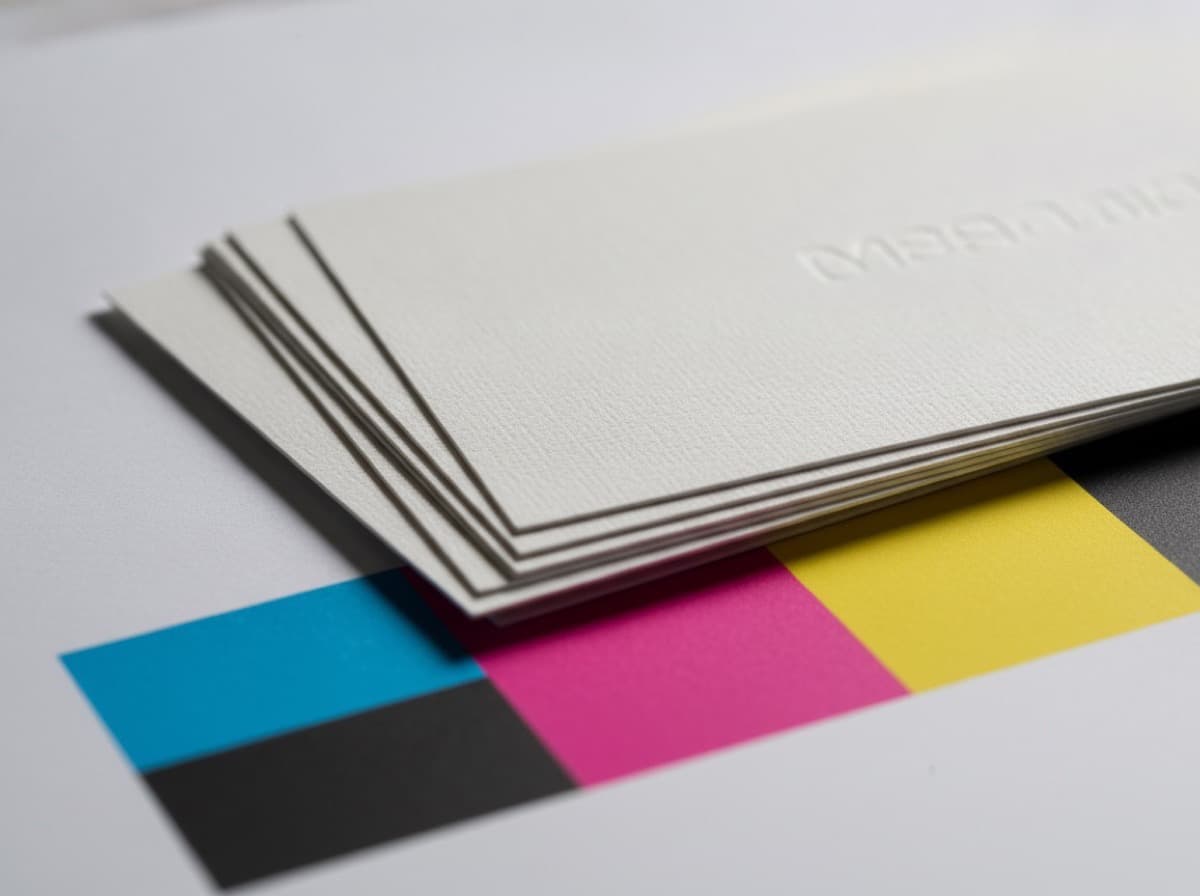
If you've ever sent a business card file to a print shop and been disappointed that the printed colors look darker, flatter, or completely different from what you designed on screen, there's a very good chance the problem was CMYK vs. RGB. This is one of the most common and most consequential technical errors in print design — and it's completely avoidable once you understand why the two color systems exist and how to use them correctly.
What Are CMYK and RGB?
RGB (Red, Green, Blue) — For Screens
RGB is the color model used by digital displays — your computer monitor, smartphone, tablet, TV, and any digital device that emits light. In RGB:
- Colors are created by combining red, green, and blue light at varying intensities
- The color space is defined by light emission
- RGB can produce millions of vivid, saturated colors — especially bright blues, electric greens, vibrant oranges, and neon hues
- An RGB image contains values from 0-255 for each channel (0,0,0 = black; 255,255,255 = white)
CMYK (Cyan, Magenta, Yellow, Key/Black) — For Printing
CMYK is the color model used by commercial and digital printing. In CMYK:
- Colors are created by combining four ink colors applied to paper
- Printing is subtractive: inks absorb (subtract) certain wavelengths of light; what remains reflects back to your eye
- CMYK has a smaller color gamut (range of reproducible colors) than RGB — many vivid RGB colors simply cannot be reproduced with ink on paper
- CMYK values are expressed as percentages 0-100% for each channel
Key insight: RGB monitors emit light. CMYK printing reflects light. These are fundamentally different physical processes, and the color that looks vibrant on a light-emitting screen may look dull or muddy when reproduced with ink on paper.
Why This Matters for Business Card Printing
The Gamut Problem
RGB's color gamut is significantly larger than CMYK's. Many colors you can display on a screen — particularly:
- Very bright, electric blues
- Vivid neon greens
- Saturated oranges
- Fluorescent pinks
...simply cannot be faithfully reproduced with CMYK inks. When a print shop receives an RGB file, their RIP (Raster Image Processor) software must convert it to CMYK using a mathematical formula. This conversion can cause:
- Shifted hues — a vivid blue becoming a more muted navy
- Darker results — colors looking heavier and denser than expected
- Flat, washed-out results — especially in mid-tones
- Unexpected color shifts — bright green shifting toward yellow-green or olive
What Happens When a Print Shop Receives an RGB File
Print shops handle this differently:
- Many will warn you and ask for a CMYK file — the most responsible approach
- Some will auto-convert using standard color profiles — the conversion may or may not match your expectations
- Some print-on-demand services auto-convert without warning — you may receive a printed card that looks nothing like your screen version
The auto-conversion approach is convenient but risky. The conversion algorithm doesn't know which colors matter most to you, and the results may not be acceptable for a logo color or a skin tone.
How to Work in CMYK Correctly
Set Up Your File in CMYK from the Start
The best practice is to design your business card in CMYK from the beginning, not to convert from RGB at the end:
- Adobe Illustrator: File → Document Color Mode → CMYK Color
- Adobe InDesign: File → New → Color Mode: CMYK (or Document Intent: Print)
- Adobe Photoshop: Image → Mode → CMYK Color
- Canva: Export → PDF Print (Canva handles CMYK conversion for print, but you cannot work natively in CMYK in Canva's interface — the export step converts)
Converting from RGB to CMYK (When You Must)
If you designed in RGB and need to convert:
- Open in Adobe Photoshop or Illustrator
- Make a backup copy of your RGB file first
- Convert to CMYK: Image → Mode → CMYK (Photoshop) or File → Document Color Mode → CMYK (Illustrator)
- Soft-proof the result: View → Proof Colors in Illustrator/Photoshop to simulate printed output
- Manually adjust any colors that shifted significantly — increase saturation, adjust hue
- Pay extra attention to brand colors, skin tones, and any colors that need to match specific Pantone or brand standards
Special Consideration: Pantone / Spot Colors
For exact brand color matching, consider Pantone Matching System (PMS) spot colors. A Pantone spot color guarantees consistent color reproduction regardless of CMYK gamut limitations. This is why major brands maintain Pantone books — Coca-Cola Red is a specific Pantone shade that prints identically on any compliant press worldwide. For business cards, Pantone spot colors require spot color printing, which adds cost but delivers exact brand color reproduction.
Avoid These Common Color Mistakes
Dark rich black vs. 100K black:
- A common CMYK mistake is using pure black (0C/0M/0Y/100K) for large filled black areas. On press, this looks thinner and slightly grayish
- "Rich black" (typically 60C/40M/40Y/100K or similar) looks deeper and more saturated for large black areas
- However, for small black text, use 100K only — rich black on small text causes misregistration and blurriness
Never use RGB black (0,0,0) in a CMYK file — it converts to rich black or inconsistent results
Neon/fluorescent colors: These simply cannot be reproduced in CMYK. If your design relies on neon, consider specialty printing with fluorescent inks (available from some print shops as a premium option) or accept that the printed result will be a softer version of what you designed.
Summary: Before You Submit Your Business Card File
- [ ] File is set to CMYK color mode (not RGB)
- [ ] All placed images are CMYK (not RGB — especially photos)
- [ ] Brand colors have been spot-proofed or confirmed with a previous print run
- [ ] Black text uses 100K only (not rich black)
- [ ] Large black fills use rich black if appropriate
- [ ] No RGB-only colors (neons, very bright blues) that cannot reproduce in CMYK
- [ ] Bleed and safe zone set correctly (see our bleed guide)
- [ ] File exported as PDF/X-1a or PDF/X-4 (CMYK-enforcing print PDF standards)
Understanding CMYK vs. RGB is the foundation of any successful print project. Get this right first, and you'll avoid the single most common cause of "the printed card doesn't look like what I designed."
Get 10% off your first order
Join our list for practical printing guides, new finish ideas, and a welcome coupon for your first order.
No spam. Unsubscribe anytime.
Ready to put these tips into print?
Order Business CardsNot sure which option fits? Ask Pro Card Crafters