ICC Color Profiles for Printing Business Cards: A Complete Guide to Color Management
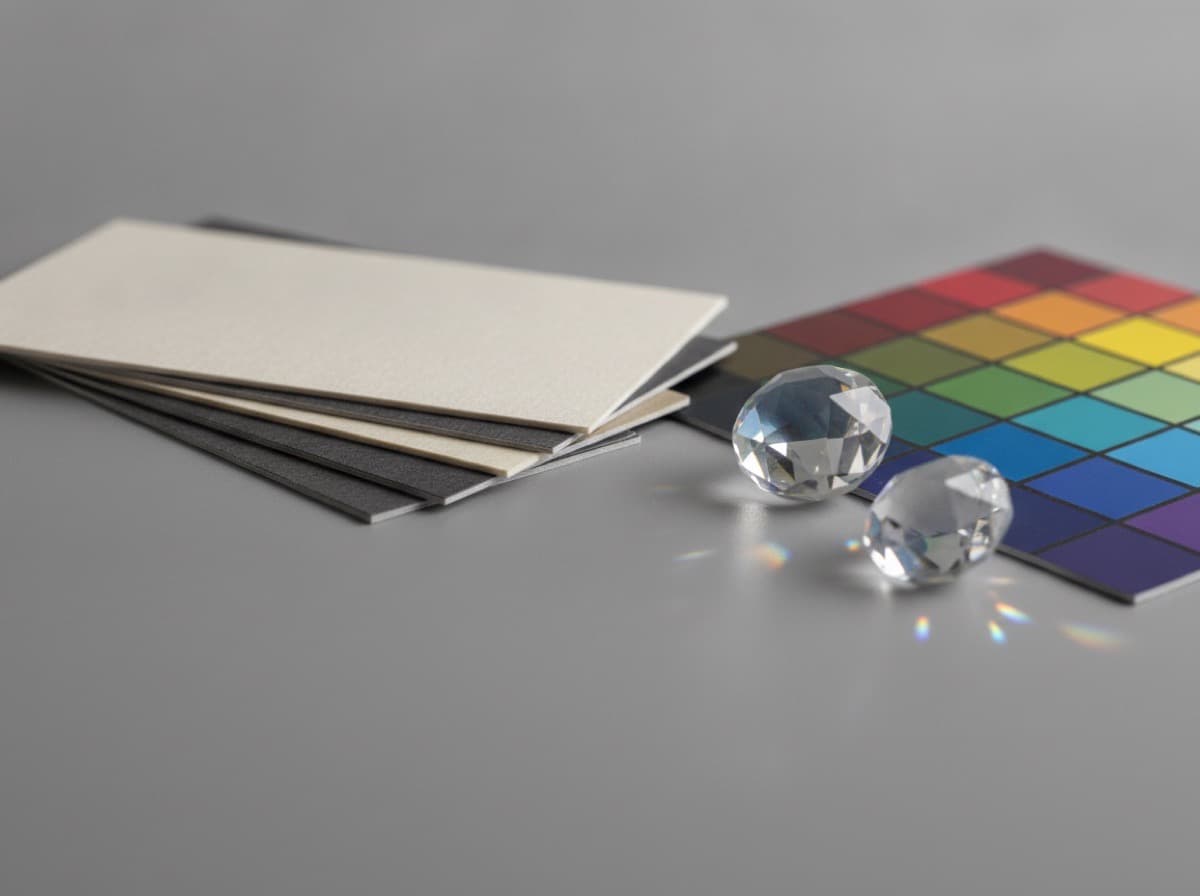
When you design a business card on your screen and it comes back from the printer looking different — colors shifted, image darker than expected, what looked burgundy on screen printing as dark brown — the likely culprit is a color management problem involving ICC profiles. This is one of the most common and most preventable problems in business card printing. This guide explains exactly what ICC profiles are, why they matter, and how to set up your file correctly so the printed result matches your expectations.
What Is an ICC Profile?
An ICC profile is a standardized file format (established by the International Color Consortium) that mathematically describes how a specific device or color space captures, represents, or reproduces color. Every device in your workflow — your monitor, your camera, and the printing press — handles color slightly differently. ICC profiles allow color management software to translate colors accurately between these different devices.
Without ICC profiles and color management, "red" on your screen could mean almost anything to a printer — a warm red, a cool red, a magenta-shifted red, an orange-shifted red — because each device speaks its own native color dialect.
RGB vs. CMYK: The Fundamental Color Space Problem
RGB (Red, Green, Blue) is the color model used by screens — monitors, smartphones, tablets. RGB is an additive color model where colors are created by mixing light. The RGB color space is large and can represent vivid colors (including many blues and greens) that cannot be printed.
CMYK (Cyan, Magenta, Yellow, Black) is the color model used by printing. CMYK is a subtractive color model where colors are created by layering semi-transparent ink on paper. The CMYK color space is smaller than RGB — it cannot reproduce all the vivid colors that an RGB display shows.
This is the core problem: When you design in RGB and send an RGB file to a printer, the printer's software must convert your RGB colors to CMYK. If this conversion happens without ICC profile management, the result can be significantly different from your screen preview.
The solution: Design in CMYK from the start (for print work), use the correct CMYK color profile for your target printing process, and submit a CMYK PDF with embedded ICC profiles.
The Major CMYK ICC Profiles for Printing
SWOP (Specifications for Web Offset Publications)
What it is: A US-standard color profile historically developed for magazine and publication printing (coated paper) Profile names: SWOP2006_Coated3v2.icc, CGATS21_CRPC3.icc (newer CGATS standard) When to use: Traditional US offset printing; often the default in many US print shops
GRACoL (General Requirements for Applications in Commercial Offset Lithography)
What it is: A US-standard color profile for commercial coated printing; GRACoL 2006 is considered the most modern and accurate US standard for coated sheet-fed offset printing Profile names: GRACoL2006_Coated1v2.icc, CGATS21_CRPC6.icc (newer CGATS standard) When to use: High-quality US commercial printing; business cards on coated stock; the current recommended US standard for quality commercial printing Why it matters: GRACoL is considered superior to SWOP for sheet-fed printing (like business card printing) because it was specifically developed for that printing process
FOGRA (Forschungsgesellschaft Druck – German Printing Industry Research Association)
What it is: European standard color profiles; FOGRA39 is the most widely used European standard for coated printing Profile names: CoatedFOGRA39.icc (commonly embedded); ISO Coated v2 (ECI) When to use: European printers; printers that specify ISO standards; if your print shop specifies FOGRA39 FOGRA51: The newer version; more paper-white characteristics; some modern European printers prefer it
Which Profile to Choose for Business Card Printing?
For US-based print shops (the majority of ProCardCrafters' customers):
- GRACoL 2006 Coated — the best current recommendation for US commercial sheet-fed printing
- If your printer specifies SWOP, use SWOP
For European printers:
- FOGRA39 (ISO Coated v2) — the standard
For most US business card printing: When in doubt, convert your colors to GRACoL 2006 Coated (CGATS21_CRPC6) before submitting. Many print shops explicitly request this or accept it without issue.
Digital vs. Offset Printing Color Profiles
Most short-run business card printing (under a few thousand copies) is produced on digital presses (HP Indigo, Xerox iGen, Kodak Nexpress) rather than traditional offset lithography. Digital presses have different color characteristics:
HP Indigo: Can reach a color gamut closer to offset; excellent for consistent color; runs on liquid electrophotographic (LEP) process with special ElectroInk. Many HP Indigo-based print shops accept GRACoL or SWOP profiles.
Toner-based digital (Xerox, Konica Minolta, Ricoh): Standard dry-toner digital presses; may not match offset color accuracy; some color gamut limitations.
For digital printing on standard business card stock:
- GRACoL 2006 Coated is still a solid reference target
- Ask your specific print shop what color space and profile they target; high-quality digital printers have G7 calibration and can hit GRACoL targets
How to Embed ICC Profiles in Your File
Adobe Illustrator (AI)
- Work in CMYK Color Mode (File > Document Color Mode > CMYK)
- Set your CMYK working space: Edit > Color Settings > Working Space > CMYK > select GRACoL2006_Coated1v2 (or your target profile)
- When exporting PDF: File > Save As > Adobe PDF; in Marks and Bleeds tab, under Output section, set Output Intent to GRACoL 2006 (or your target); include "Convert to Destination" or "No Color Conversion" depending on whether your file is already in the correct space
Adobe InDesign
- File > New Document > set color mode to CMYK
- Edit > Color Settings > set CMYK working space
- File > Export > Adobe PDF; in Output section, set PDF/X-4 or PDF/X-1a compliance; choose your output intent profile
Adobe Photoshop
- Image > Mode > CMYK Color
- Edit > Convert to Profile — select GRACoL2006_Coated1v2
- Save As PDF > Output > embed color profile
Soft Proofing: Preview Your Print Colors on Screen
Soft proofing lets you simulate on your screen how your file will look when printed with a specific ICC profile, before you send anything to a printer.
In Adobe Illustrator or Photoshop: View > Proof Setup > Customize > select your CMYK profile (GRACoL2006_Coated1v2) > enable "Rendering Intent: Relative Colorimetric" and "Black Point Compensation" > click OK, then View > Proof Colors (Ctrl+Y / Cmd+Y)
Soft proof mode shows you the gamut-compressed CMYK version of your colors. Any colors that look significantly different in soft proof vs. your original will shift when printed — adjust CMYK values now to correct them.
Practical Color Tips for Business Card Design
Specify colors in CMYK, not RGB or Hex: When specifying your brand colors for print, always use CMYK values (C:0 M:85 Y:100 K:5 for a warm red, for example). Never use HTML hex colors or Pantone RGB values as your print color target.
Be careful with blues in CMYK: Blues are one of the most common problem colors in print — screen RGB blue (#0000FF = vivid blue) converts to approximately C:100 M:90 Y:0 K:0 in CMYK, which can look somewhat muddy or purple compared to screen. Adjust blues in CMYK to C:100 M:60 Y:0 K:0 for a cleaner blue, or similar adjustment.
Rich black for large dark areas: Standard 100% black (K:100 only) can look slightly gray or flat on large dark fills. A rich black (C:60 M:40 Y:40 K:100) is deeper and richer for large fills. However: for text, use K:100 only (adding CMY to text creates registration issues on press that blur text).
Total ink coverage: Most commercial printing processes have an ink limit (Total Area Coverage, TAC) of 280–320%. If your CMYK values add up to more than 280–300% (e.g., C:100 M:100 Y:100 K:100 = 400%), you'll have ink coverage problems. Check your profile's total ink limit.
Color Profile Checklist for Business Card Printing
- [ ] Design in CMYK color mode (not RGB)
- [ ] Set CMYK working space to GRACoL2006_Coated1v2 (US) or ISO Coated v2 FOGRA39 (EU)
- [ ] Use CMYK values for all brand colors (not RGB, not Hex, not Pantone RGB)
- [ ] Soft proof with print profile before finalizing design
- [ ] Check blues, purples, and vivid colors (often shift in CMYK conversion)
- [ ] Specify black text as K:100 only (not rich black for small text)
- [ ] Rich black for large dark fills: C:60 M:40 Y:40 K:100 (or equivalent)
- [ ] Total ink coverage under 300% throughout
- [ ] Export as PDF/X-4 (preferred) or PDF/X-1a with embedded ICC profile
- [ ] Ask your printer what profile they target (GRACoL, SWOP, or FOGRA)
- [ ] Order a physical proof before full-run approval
Get 10% off your first order
Join our list for practical printing guides, new finish ideas, and a welcome coupon for your first order.
No spam. Unsubscribe anytime.
Ready to put these tips into print?
Order Business CardsNot sure which option fits? Ask Pro Card Crafters