What 300 DPI Actually Means — and How to Prepare Images for Print
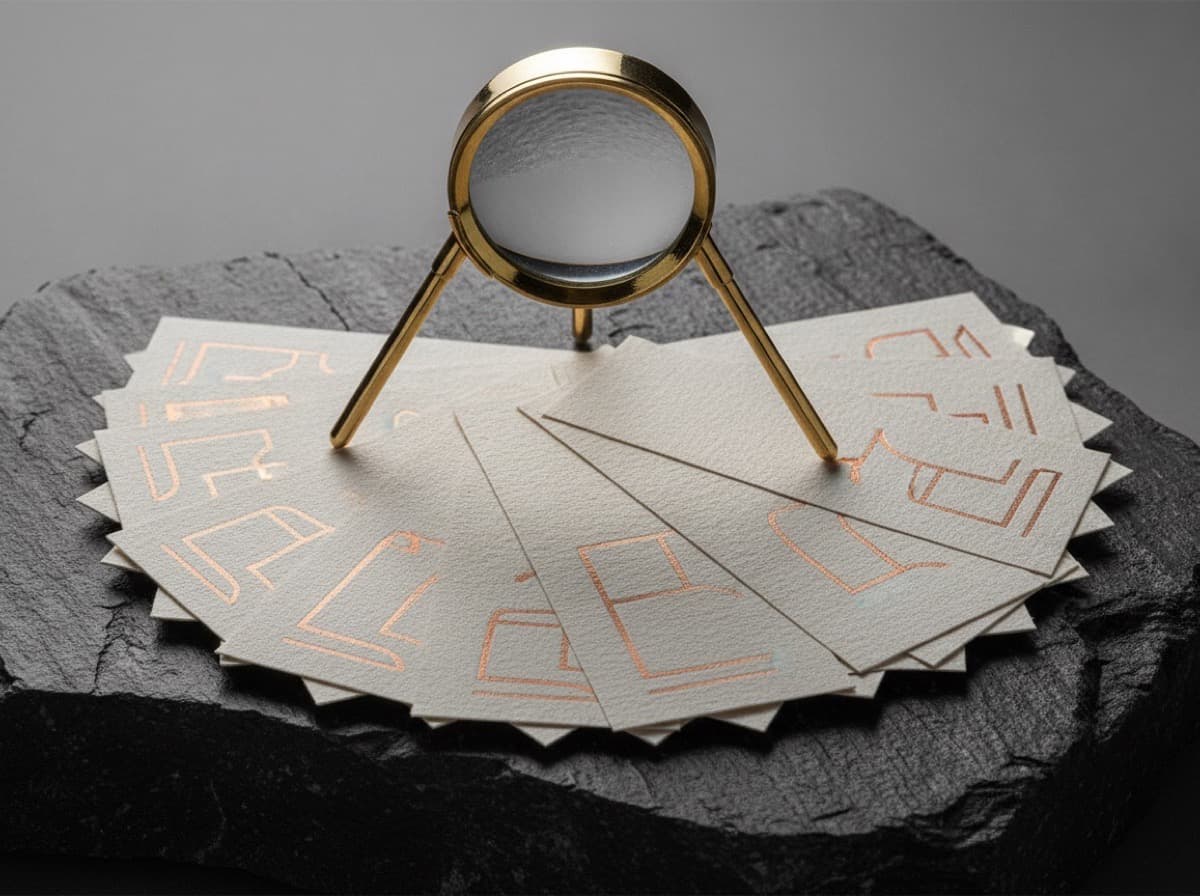
"Please provide images at 300 DPI." It's the first thing any printer tells you — yet most people don't actually know what DPI means or how to tell whether their image meets the requirement.

DPI, PPI, and What Resolution Really Means
DPI (Dots Per Inch) refers to the number of ink dots a printer lays down per inch of output. PPI (Pixels Per Inch) refers to the number of pixels per inch in a digital image. Strictly speaking, digital images are described in PPI — but in everyday print production, the two terms are used interchangeably, and "DPI" has become the universal shorthand.
The key insight is this: the same pixel count produces different levels of sharpness depending on the output size. Pack those pixels into a small area and you get a dense, sharp image (high resolution). Spread the same pixels over a large area and they become sparse and blurry (low resolution).
Why 300 Specifically?
The human eye can distinguish roughly 300 individual dots per inch at a normal reading distance of about 12 inches (30 cm). Beyond that density, finer detail yields no perceptible improvement. That's why 300 DPI became the established standard for print materials held in the hand — business cards, brochures, flyers, booklets.
| Print Product | Recommended Resolution | Typical Viewing Distance | |---------------|----------------------|-------------------------| | Business cards / flyers / booklets | 300 DPI | 12 in (30 cm) | | Posters (A2–A1) | 150–200 DPI | 3–6 ft (1–2 m) | | Large banners | 72–100 DPI | 15 ft+ (5 m+) |
Calculating the Pixel Count You Need
The formula is straightforward: required pixels = print size (inches) × DPI.
For example, a full-bleed photo on a US Letter sheet (8.5 × 11 in) printed at 300 DPI:
- Width: 8.5 × 300 = 2,550 px
- Height: 11 × 300 = 3,300 px
So you need an image of at least 2,550 × 3,300 px. For a standard business card (3.5 × 2 in), you only need roughly 1,050 × 600 px.
Why Does an Image Look Sharp On Screen but Print Blurry?
Monitors typically display at 72–96 PPI, so even a low-resolution image looks fine on screen — the display is spreading each pixel over a small physical area. The moment you print that same image at 300 DPI, the pixels get physically larger on paper, and you see the blocky staircase artifacts and soft blurring that were invisible on screen. Downloading small images from the web is the most common cause of this problem.
Practical Tips
- Artificially enlarging a small image (upscaling) does not create new detail — it just makes the blur larger. Start with a high-resolution original.
- In Photoshop, go to Image > Image Size, set the resolution to 300, uncheck Resample, and read the resulting physical dimensions. That tells you the maximum print size at which the image will look sharp.
- Vector artwork (AI, EPS, SVG) is resolution-independent — it scales to any size without quality loss. Always request logos in vector format when possible.
Frequently Asked Questions
Q. Can I just change the DPI setting to 300 in Photoshop? A. If the pixel dimensions stay the same, only the output print size changes — the image does not become sharper. To print at the same size with true 300 DPI quality, you need a source image with more pixels.
Q. Can I use a smartphone photo for print? A. Modern smartphones capture 12 megapixels or more (roughly 4,000 × 3,000 px), which is more than sufficient for prints up to US Letter size. The main risk is noise from low-light shots, which becomes even more visible in print — stick to well-lit originals.
Q. Why don't large banners need 300 DPI? A. Because they are viewed from a distance. At 15 feet (5 m) away, 100 DPI already looks crisp. Setting a large banner to 300 DPI would also produce a multi-gigabyte file that is impractical to work with.
Get 10% off your first order
Join our list for practical printing guides, new finish ideas, and a welcome coupon for your first order.
No spam. Unsubscribe anytime.
Ready to put these tips into print?
Order Business CardsNot sure which option fits? Ask Pro Card Crafters