QR Codes on Business Cards: Do's and Don'ts
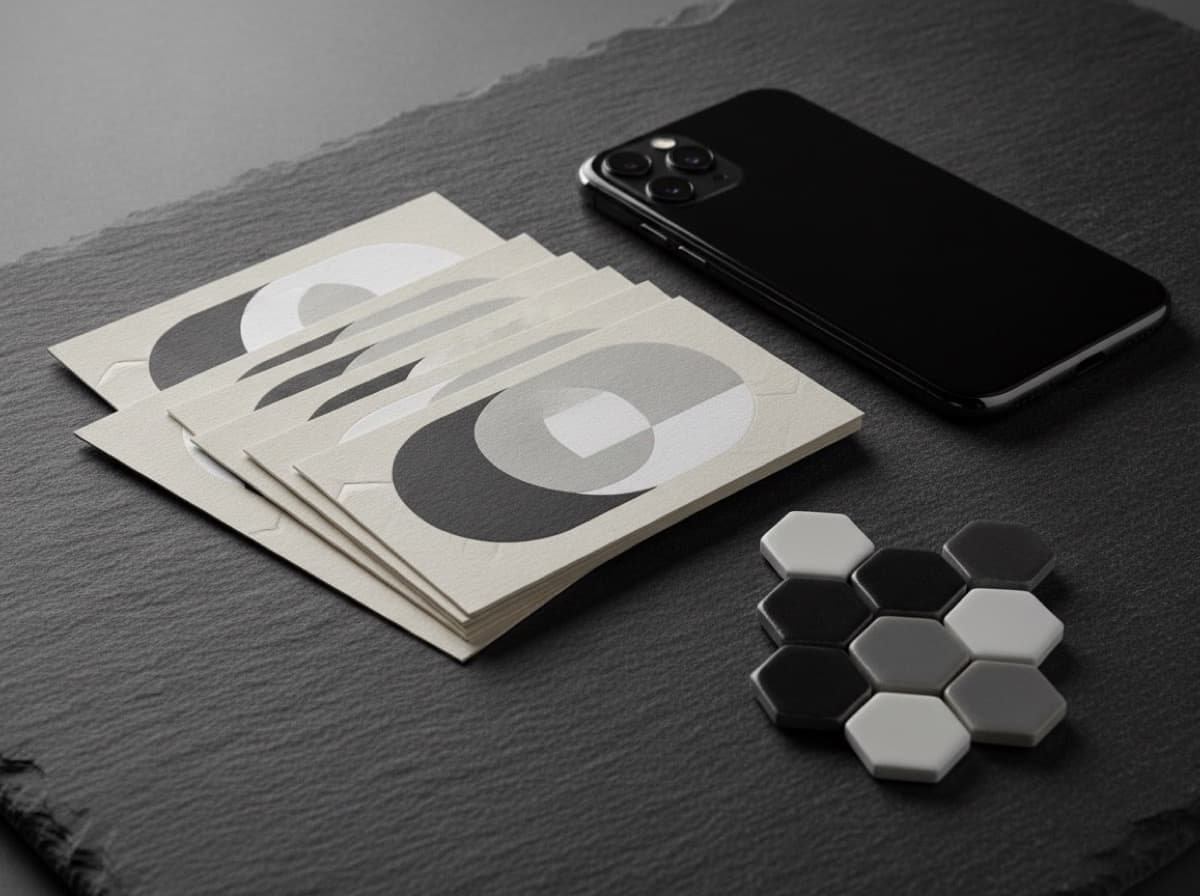
A QR code on a business card can do something a printed phone number or URL cannot: take someone from a physical card directly to a digital action — your contact file, your portfolio, your LinkedIn profile, or a personalized landing page — with a single scan. Done right, a card QR code is one of the most effective bridges between a physical networking interaction and an ongoing digital relationship. Done wrong — code too small, too much data, bad contrast, or a glossy coating over the code — it won't scan and becomes a design liability instead of an asset. This guide covers the do's and don'ts of putting a QR code on a business card so the code actually works.
What to link a business card QR code to
The most useful destinations, roughly in order of conversion value:
vCard (contact file) — a .vcf file that loads directly into the recipient's contacts app with your name, number, email, and any other fields you populate. This is the most functional use of a card QR: it removes the friction of typing a phone number and means your details are in the phone, not just on the card. Encode a hosted vCard URL, not the raw vCard data (raw data creates a much larger code with more error risk).
Personal landing page — a brief page with your bio, current work, and a contact form. More controllable than a social profile and more relevant than a generic homepage.
LinkedIn profile — appropriate when LinkedIn is the professional relationship's next step. Direct the URL to your profile page, not a generic LinkedIn URL.
Portfolio or specific project — for creatives, architects, and designers, linking directly to relevant work avoids the step of navigating from a homepage.
Scheduling link — a Calendly or similar page lets interested contacts book time directly. Most efficient for consultants and services businesses where the goal of the card is an appointment.
Avoid linking to your homepage unless it has a specific, action-oriented experience. A generic homepage with no clear next action loses the focused intent of the card interaction.
QR code size: the critical minimum
A QR code that's too small won't scan reliably — the camera struggles with fine detail at small sizes. The safe minimum for a business card is 0.75 inches × 0.75 inches (about 19mm × 19mm). This is roughly the size of a thumbnail and is workable for most phone cameras in reasonable lighting. Going smaller than this on a card is a risk not worth taking.
At the standard business card size of 3.5 × 2 inches, a 0.75-inch code leaves adequate room for other card content. Place it in a corner or on the back of the card to avoid crowding the front layout.
Contrast and background: critical requirements
The scanner reads the dark modules against the lighter background. For a code to scan reliably:
- High contrast is non-negotiable — dark modules (ideally black or very dark color) on a white or very light background.
- Custom color codes — colored QR codes can work but are risk-prone. A dark navy or dark green on white still has adequate contrast; medium grey on white does not. Always verify custom-color codes with a scanner before finalizing.
- No gradient behind the code — a gradient that transitions from light to medium behind the code will fail in the darker areas.
- Brand color codes — if you need the code in a brand color, use a tool that generates high-contrast codes and test the output across three different phone cameras before ordering.
Finish considerations: coatings that kill scans
A glossy coating or spot UV over a QR code creates glare that phone cameras can't see through. This is a well-documented failure mode: the card looks fine, the code is present, but the light reflects off the coating at an angle that makes the code unreadable.
Rules:
- Keep the QR code area matte — either design the card so the code is outside any spot UV treatment, or keep the entire card matte.
- If the card has a glossy base lamination, position the code in an area covered by a matte laminate patch.
- If you're adding spot UV, place the treated areas on the logo, name, or pattern — not on or near the code.
Error correction: allow for wear
QR codes have a built-in error correction setting that determines how much of the code can be damaged or obscured before it stops scanning. For business cards — which travel in wallets and pockets and may get worn — set error correction to Level Q (25% recovery) or Level H (30% recovery). This makes the code slightly larger but substantially more reliable over the card's life.
If you're embedding a logo within the QR code (a popular design choice), you must use Level H error correction, since the logo obscures part of the code by definition.
Keep the URL short
More data in a QR code means more modules (the small squares) in a denser pattern, which requires a larger code to scan reliably at small sizes. Link shorteners (bit.ly, a custom domain redirect, or a branded short URL) reduce the encoded data and let you use a smaller, cleaner code.
Avoid encoding raw vCard data directly into the code — a full vCard record generates a dense, large code. Host the vCard as a file and link to the URL instead.
Placement on the card
Front: works if the code doesn't crowd the design. A corner placement is typically the least intrusive.
Back: often the best choice. A QR code on the back, paired with a simple instruction ("scan to save contact"), gives the code dedicated real estate and keeps the front clean. See our double-sided card guide for more back-of-card options.
Bottom line
A QR code on a business card works when it links to a useful action (vCard, portfolio, scheduling), is large enough to scan (0.75 inches minimum), has high contrast, and avoids glossy coatings or spot UV over the code area. Test every code with at least three different phone cameras before ordering. When it works, it's one of the most effective conversions a physical card can make.
Frequently Asked Questions
What should a business card QR code link to?
The most effective destinations are a hosted vCard (contact file), a personal landing page, or a LinkedIn profile. For creatives, a portfolio link. For consultants, a scheduling link. Avoid linking to a generic homepage unless it has a clear, action-oriented experience.
What size should a QR code be on a business card?
A minimum of 0.75 inches × 0.75 inches (about 19mm). Going smaller significantly increases scan failure rates, especially in lower lighting. Position the code in a corner or on the back of the card to give it adequate room without crowding the layout.
Will a QR code scan through a glossy business card?
Not reliably. Glossy lamination and spot UV create glare that blocks phone cameras. Keep the QR code area matte — either use a fully matte card, or design spot UV treatments to avoid the code area.
Can I customize the color of a business card QR code?
Yes, but with caution. Dark modules on a light background are required — if the code color has enough contrast, a scanner will read it. Always test a custom-color code across multiple phone cameras before ordering. Never use a gradient background behind the code.
What is QR code error correction and why does it matter?
Error correction determines how much of a code can be damaged and still scan. For business cards (which wear in wallets), Level Q (25% recovery) or Level H (30% recovery) is recommended. If you're embedding a logo within the code, Level H is required.
Should the QR code go on the front or back of the card?
Either works, but the back is often cleaner. Placing the code on the back gives it dedicated real estate, keeps the front design uncluttered, and lets you add a brief instruction ("scan to save my contact") without competing with identity information.
Get 10% off your first order
Join our list for practical printing guides, new finish ideas, and a welcome coupon for your first order.
No spam. Unsubscribe anytime.
Ready to bring this design to life?
Order Premium CardsNot sure which option fits? Ask Pro Card Crafters